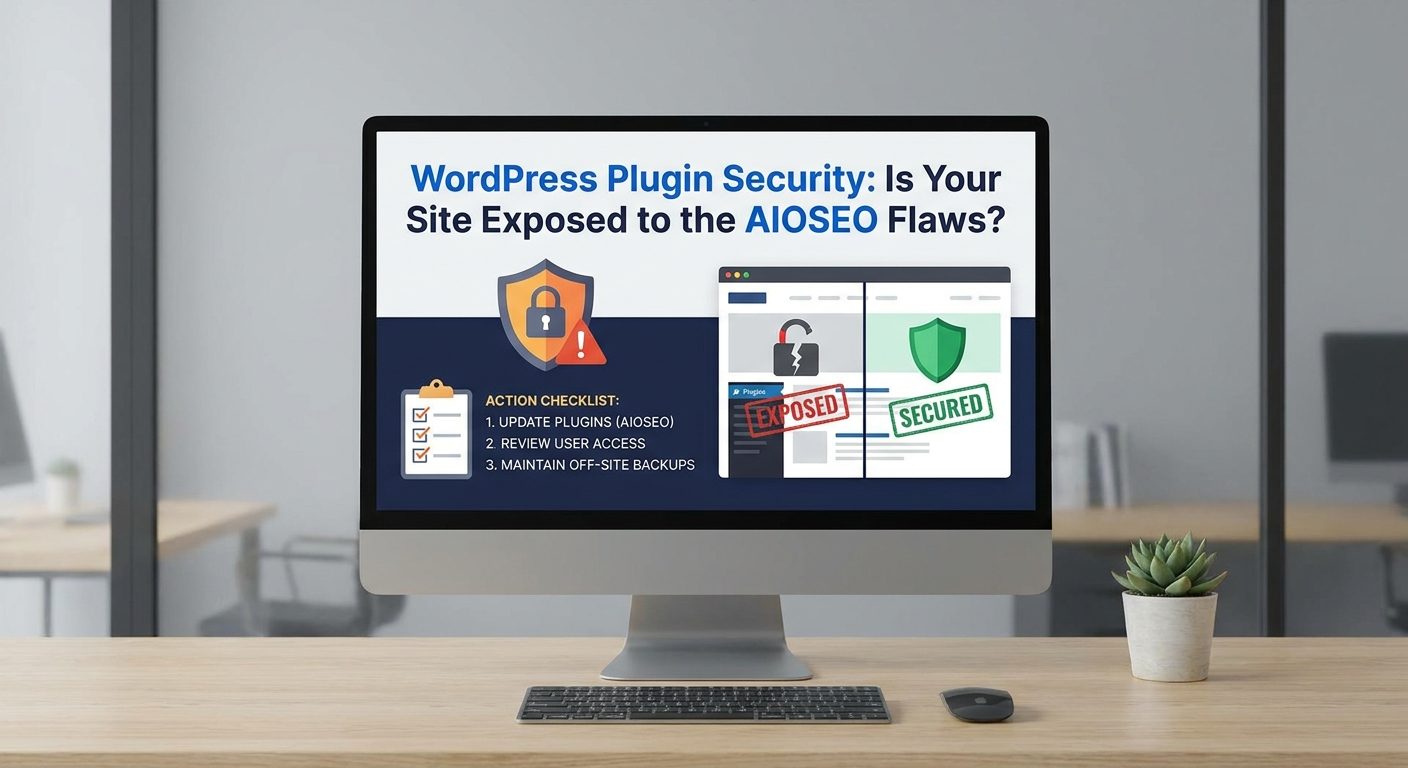
Most small business websites have a plugin that someone installed years ago and nobody has looked at since. For a lot of UK sites, that plugin is All in One SEO (AIOSEO), quietly handling page titles, sitemaps and schema in the background while the owner gets on with running the business.
This week, that plugin made the news for the wrong reasons. Two security flaws have been reported, and if your site is running an out-of-date version, it is worth ten minutes of your time to check. Here is what the flaws are, why they matter, and what to do about them.
What the two AIOSEO flaws actually are, in plain English
AIOSEO is used by over 2 million websites to manage SEO settings, XML sitemaps, schema markup, redirects, internal links and more. That reach is the first thing to understand. When a plugin sits on that many sites, a single flaw is not a niche problem. It is a list of targets that attackers can work through.
Two separate vulnerabilities have been reported, both rated medium severity. Neither is a "drop everything in a panic" event. Both are serious enough that you should act this week rather than leave it until next quarter.
Flaw one: CVE-2026-100152 (shortcode execution)
This one allows unauthenticated attackers to execute arbitrary shortcodes under specific conditions. "Unauthenticated" simply means no login is needed. A stranger does not need an account, a password or any kind of foothold on your site to trigger it.
If "shortcode" is new to you, think of it as a small instruction written in square brackets that tells WordPress to run a feature. Something like [contact_form] says "put the contact form here". It is a bit like a note you leave for a member of staff: "do this job now". You are happy for your own team to hand out those notes. You do not want strangers on the street shouting instructions at your staff, which is roughly what this flaw allows.
The phrase "under specific conditions" matters. Not every site will be equally exposed, and the outcome depends on which shortcodes your site has available (from your theme, page builder and other plugins). But you cannot easily judge that from the outside, so the sensible move is to assume you are exposed until patched.
Flaw two: CVE-2025-14384 (authorization bypass)
This is a different kind of problem. It is an authorization bypass, which means a part of the plugin fails to check whether someone is allowed to see something. Here, anyone logged in with Contributor-level access or above can see sensitive AI access token data.
A token is a bit like a key card that lets your site talk to an AI service. It is not meant to be visible to a Contributor, who in a normal setup is someone who can write posts but not publish them. Think of a guest blogger, a freelancer or a former employee whose account was never removed.
Which versions are affected
Wordfence lists the affected versions as 4.9.7 and earlier. The fix arrived in version 4.9.7.1, so anything at 4.9.7.1 or newer is patched. If your site shows 4.9.7 or lower, you need to update.
Why a medium-severity rating still deserves your attention
A severity score is a measurement of the flaw on its own, in a lab, with nothing else going on. It does not know what else is installed on your site, which user accounts exist, or what an attacker could combine it with. Real attacks are often built from several small weaknesses chained together, and a "medium" can be the first link.
The "unauthenticated" part is what should sharpen your attention. Attackers do not hand-pick victims for this kind of thing. Bots probe thousands of sites an hour, looking for a specific plugin at a specific version, and they do not need a password to try. Your site being small, local or "not interesting" does not protect you. To an automated scanner, a plumber's website in Sussex looks identical to a national retailer's.
This is a pattern, not a one-off
It is also not the first time. In 2024, the WA Cyber Security Unit flagged CVE-2024-3368 in AIOSEO, when the plugin had over 3 million active installs. Popular plugins attract researchers and attackers alike, so periodic vulnerabilities are close to inevitable. That is not a reason to drop the plugin. Any widely used software gets scrutinised, and the useful response is to patch quickly, not to go hunting for something obscure that nobody is looking at (which is usually worse).
What a leaked AI token could cost you
The token flaw sounds abstract, so here is a plausible example. Say your site is connected to an AI service on a pay-as-you-go plan, and you normally spend about £15 a month generating meta descriptions. A disgruntled ex-freelancer with a leftover Contributor login copies the token and uses it to run bulk requests for their own projects. A few weeks later you have a bill for several hundred pounds, or your account is suspended mid-campaign, and nothing in your WordPress dashboard looks wrong.
The token could also be used to generate content under your account that you would not want attached to your name. The money is usually the first thing people notice, but the loss of control is the real issue.
A 30-minute checklist to check and fix your site today
You do not need to be technical for any of this. Work through the steps in order, and stop wherever you reach something you are unsure about. That is the point to ask your web developer.
Step 1: check your version
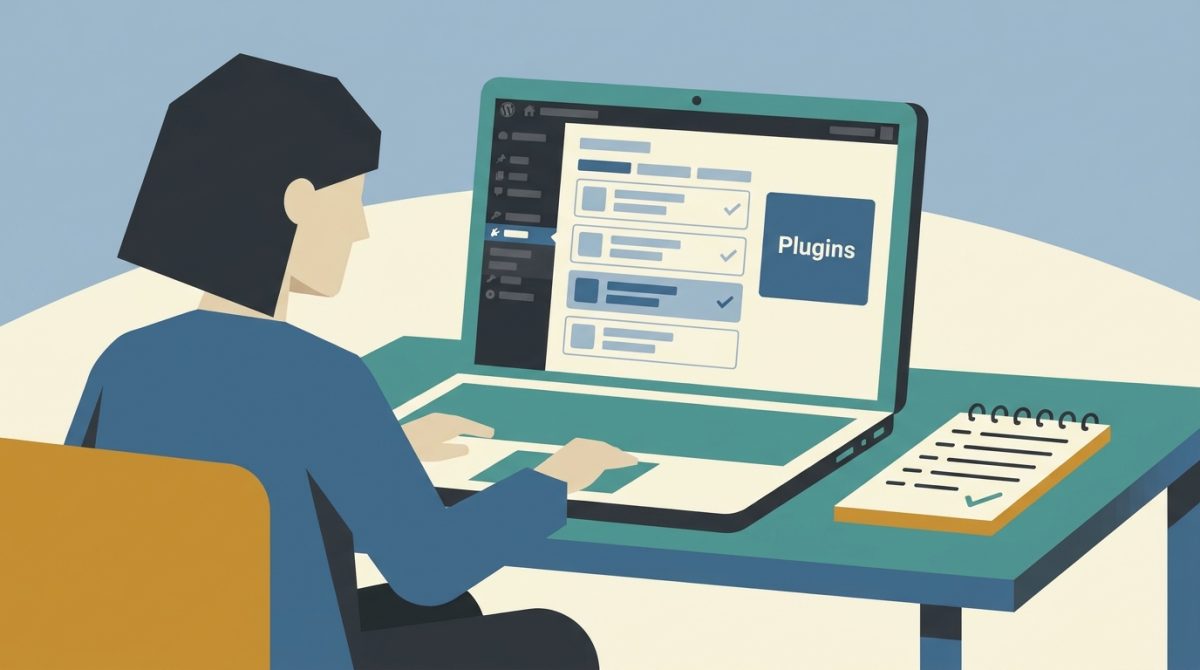
Log in to your WordPress dashboard and go to Plugins. Find All in One SEO and read the version number beneath it. If it says 4.9.7 or below, update to 4.9.7.1 or newer. If you see an "update now" link, that is your cue.
Step 2: back up first, then test
Before you click update, take a backup. Your host may offer a one-click option, or you can use a backup plugin. Once the update is done, test three things: load the front page, submit your contact form and, if you sell online, add something to the basket and get to the checkout. Check on your phone as well as your computer.
Step 3: if you cannot update, deactivate
Sometimes the update button fails, or a theme or page builder conflicts with the new version. Do not leave the old version running while you "get round to it". Deactivate the plugin temporarily. Your SEO settings are normally kept in the database, so deactivating is not the same as losing them. You can reactivate once the conflict is sorted. Your pages may lose some SEO output in the meantime, which is a far smaller problem than a compromised site.
Step 4: deal with the AI token
If you use AIOSEO's AI features, regenerate or revoke the access token as a precaution. Even if nobody on your site is untrustworthy, you cannot be sure the token was not seen. Afterwards, glance at your AI usage figures for anything odd, such as a spike you cannot explain.
Step 5: clear out dead plugins
Still in the Plugins screen, look for anything marked inactive, or anything you have not seen an update for in a long time. Delete what you do not use. A deactivated plugin's files still sit on your server, and a vulnerable file can sometimes be reached directly even though the plugin is switched off. Deleting is the only safe option.
Step 6: switch on automatic updates
For plugins you trust and that are actively maintained, tick the "enable auto-updates" link next to each one on the Plugins screen. It means the next patch lands without you needing to read the news. Keep a backup routine running alongside it, in case an update ever causes trouble.
How long this really takes
For a simple brochure site with a handful of plugins, expect 10 to 20 minutes, most of it spent on the backup and testing. A WooCommerce shop with custom features, payment gateways or bespoke theme code is a different story. Allow 45 to 60 minutes, and consider doing the update on a staging copy first, so a conflict shows up there rather than in front of customers. If your shop takes orders around the clock, pick the quietest hour of your week and do the work then.
Who can log in, and what can they do? Reviewing user access
The second flaw only bites if the attacker already holds a login at Contributor level or above. That makes your user list part of your defence. Every account you remove is one fewer way in, and every account you downgrade is one fewer account that can reach sensitive plugin data.
Run a ten-minute audit
Go to Users in your WordPress dashboard and click the Role column to sort by role. Read the list line by line. Anyone you don't recognise, or who has left, should go.
The usual culprits are former staff, freelancers who built a landing page two years ago, and the agency that managed the site before you changed supplier. If you're unsure about an account, don't delete it blindly. Change its role to Subscriber and see whether anyone complains.
Give people the least they need
Your blog writer needs Author or Contributor, not Administrator. Your bookkeeper who occasionally edits a price list needs Editor at most. Keep Administrator for one or two people you'd trust with the keys to the shop, and no more.
It's worth checking this even if you've patched, because the next plugin flaw will have its own version of the same rule. Low-level accounts are where attackers start.

Lock the front door as well
Under Settings, then General, look at "Anyone can register" and "New User Default Role". If registration is open and the default role is Contributor, you've effectively handed out eligibility for this flaw to the public. Unless you run a membership site, untick the box. If you do need registration, make sure the default role is Subscriber.
Next, switch on two-factor authentication for every administrator. Plugins such as Wordfence or WP 2FA do this in a few minutes, and the codes come from an app on your phone. Pair that with a unique, strong password for each person, stored in a password manager like Bitwarden or 1Password rather than a sticky note.
What to watch for afterwards
You don't need a security operations centre, but SentinelOne's monitoring guidance has two ideas worth borrowing. First, watch for non-admin users reaching plugin settings, which a Contributor should never need to do. Second, keep an eye out for unexpected AI service usage, such as a sudden spike in your AI provider's billing or request logs. That could mean a stolen access token is being used somewhere else.
Wordfence's activity log and your AI provider's usage dashboard will show you both without any technical setup.
Backups and a routine that makes the next plugin flaw a non-event
Updates stop most problems, but a backup is what saves you from the ones that slip through. Think of it as the 3-2-1 idea, simplified: keep several copies, and make sure at least one lives away from your web server. If the copy sits on the same hosting account as the site, a compromise can take both out together.
In practice, that could mean UpdraftPlus sending a nightly copy to Google Drive, Dropbox or Amazon S3. It could also mean your host's own daily backups, as long as you know how many days they keep and how to get one back. Ideally you'd have both.
Test a restore once
An untested backup is a hope, not a plan. Ask your host to restore to a staging copy, or try it yourself on a spare subdomain, and confirm the site actually loads with its pages, images and forms intact. You'll learn how long it takes and who to call, which is exactly what you don't want to discover during an emergency.
A routine you'll actually keep
Keep it small enough that it survives a busy month:
- Monthly: pick a set day, say the first Tuesday, to run plugin, theme and WordPress updates. Check the site afterwards, including your contact form.
- Quarterly: review the user list and roles, as above.
- Whenever you see a headline: skim the vulnerability news or your Wordfence alert emails, and check whether any plugin you run is named.
If that sounds like one more job on top of running a plumbing firm or a salon, you're not wrong. This is the sort of thing managed hosting and care plans take off your plate. Our support and hosting service covers updates, backups and monitoring, so a flaw like this gets dealt with before you've heard about it.
Whatever you decide, do one thing today: open Plugins, find All in One SEO, and check the version number against the patched release. It takes less time than making a cup of tea. If you can't log in, or you're unsure what you're looking at, a phone call to your hosting provider will sort it.